
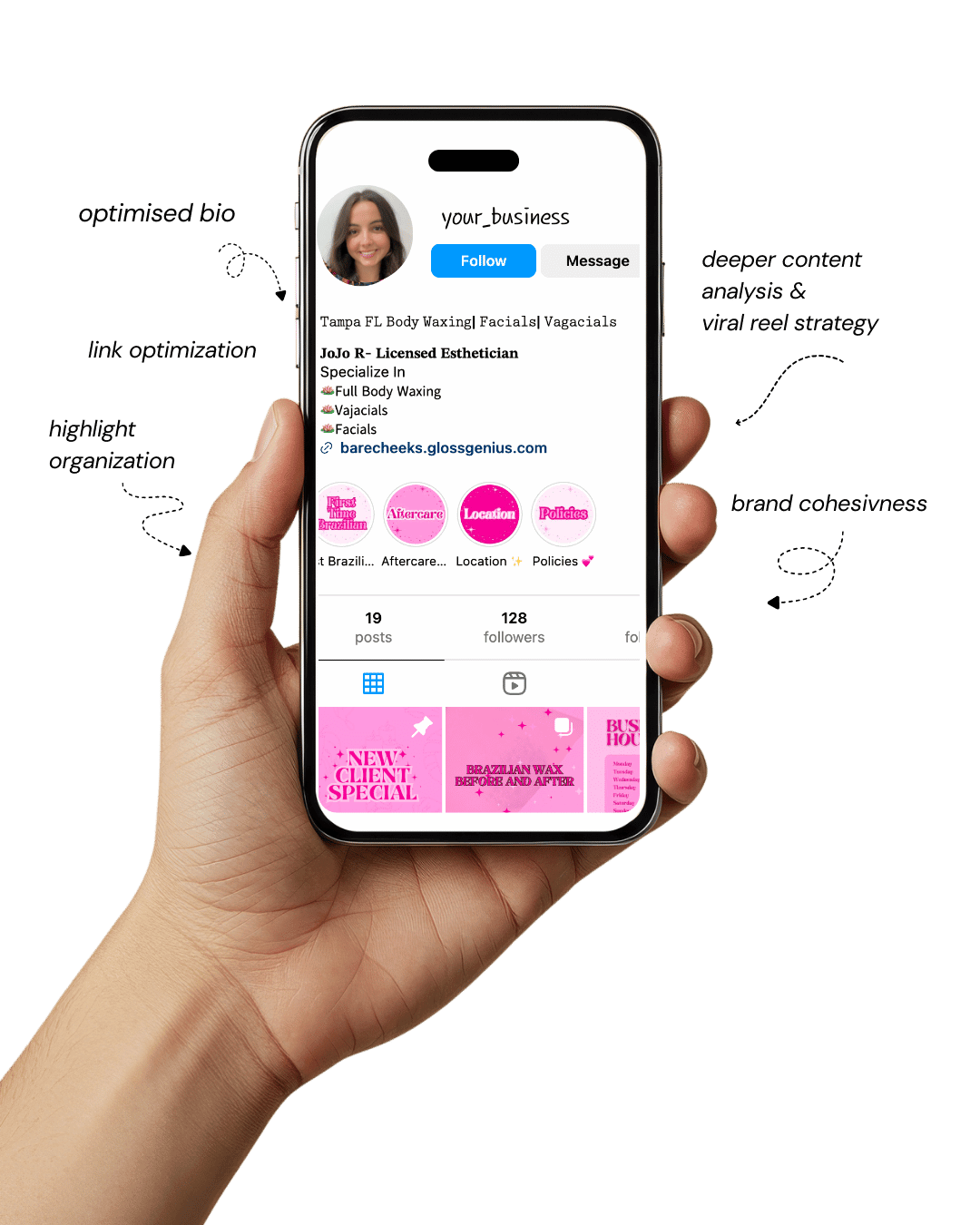
Your Instagram isn’t the problem.
The strategy is.
Get a free, honest audit of your Instagram profile — tailored for beauty, wellness & creative brands.
You’ll receive: profile fixes · content gaps · bio upgrades · content ideas.
I personally review your profile and send a clear, actionable breakdown — no AI, no templates.
If you’ve been looking for fresh Canva design ideas to elevate your small business brand, you’re in the right place.
Canva has evolved into an essential tool for entrepreneurs, creators, and marketers who want to craft visually appealing and professional content without hiring a full-time designer.
From logos and social posts to pitch decks and product mockups, Canva offers an accessible gateway to branding that actually converts.
For small business owners, design isn’t just about beauty — it’s about communication. The way your brand looks determines how people perceive it, interact with it, and, ultimately, buy from it.
That’s why using strategic Canva design ideas can drastically enhance your visibility on social media and improve brand recall.
Let us walk through some design ideas specifically crafted for small businesses looking to stand out online.
You’ll learn not only what to design but how to use Canva’s tools effectively, from customizing templates and color palettes to exporting your visuals in the right formats for each platform.
Whether you’re rebranding or starting from scratch, this guide will help you unlock Canva’s potential and make your brand look like it came straight from a professional studio.
Why Great Design Matters for Small Businesses
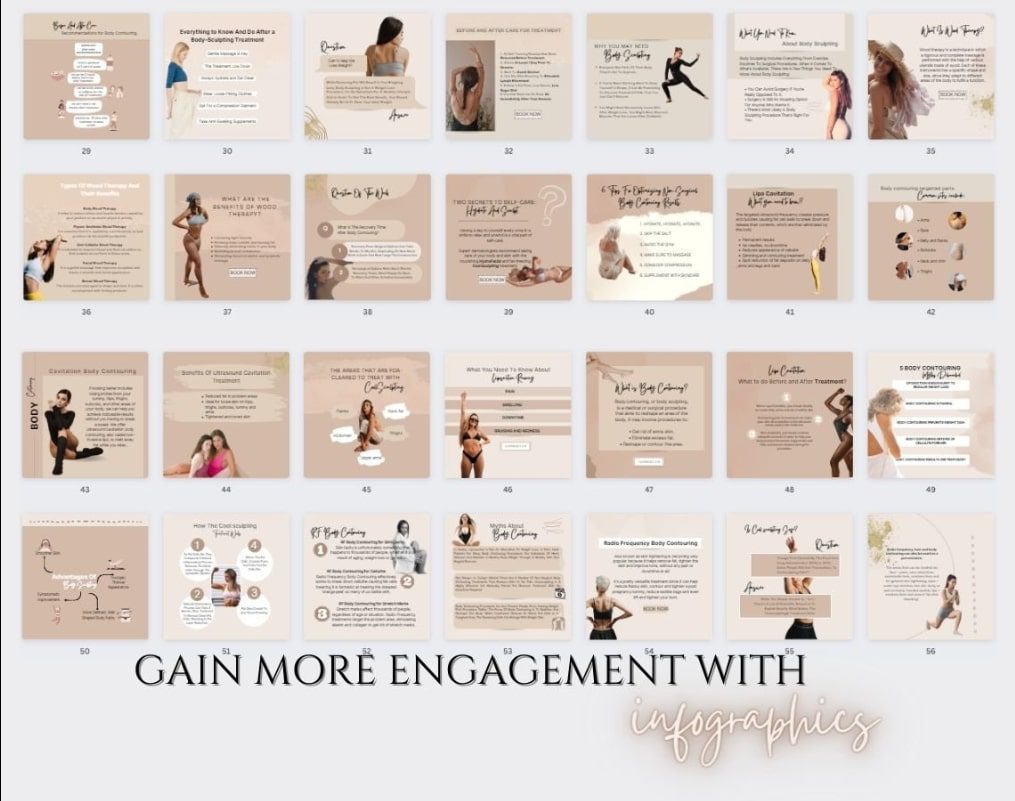
Good design isn’t a luxury — it’s a necessity. For small businesses trying to establish credibility and attract attention in a noisy market, your visuals are your voice.
The right Canva design ideas can turn an average brand into a memorable one.
Psychology plays a role here. Color choices affect emotion, typography influences readability, and layout dictates how information is absorbed.
A cohesive visual identity signals trust, while inconsistency can confuse potential customers. In fact, consistent branding across all platforms can increase revenue by up to 23%.
Another overlooked advantage of Canva is efficiency. Instead of outsourcing every design task, you can create templates for repeated use — saving both time and money.
Plus, Canva’s Brand Kit feature ensures your colors, logos, and fonts remain consistent across every post, brochure, or ad.
Ultimately, great design isn’t about being flashy — it’s about being clear, memorable, and strategic.
By applying the following Canva design ideas, you’ll ensure every digital touchpoint reflects your brand’s personality while driving meaningful engagement.
1. Logo Templates that Speak Volumes
Your logo isn’t just decoration — it’s your brand’s cognitive shortcut. When designing in Canva, start by selecting a layout that works well in square and circular crops (since platforms like Instagram, PayPal, and Shopify all use those).
Use Canva’s vector-based elements and export in SVG for scalability.
Dig into letter-spacing and optical balance — most templates need manual spacing tweaks to feel premium.
Also, experiment with negative space; small adjustments can transform an amateur logo into a professional one.
2. Social Media Post Templates
Most brands lose impact because they redesign every post from scratch. Instead, create five post frameworks in Canva — educational, announcement, testimonial, quote, and product feature — and save them as reusable templates.
Use Canva’s Styles panel to apply your brand palette and typography in one click. This helps your feed look cohesive while cutting your design time by 70%.
3. Branded Pinterest Pins
Pinterest is a visual search engine, not just a mood board. Use SEO-driven text overlays with your target keywords. Canva lets you adjust line spacing and kerning to maximize text legibility without overpowering the visuals.
Apply subtle gradients behind text boxes (try white-to-transparent at 20% opacity) to improve readability without blocking imagery — one of the most underused Canva design ideas for Pinterest.
4. Business Cards that Impress
A business card is mini-real estate for brand memory. Don’t settle for Canva’s defaults — customize margins manually and add micro-elements like embossed shadows or faint grid textures.
Upload your vector logo, apply Canva’s crop marks + bleed setting, and always export in PDF Print. The overlooked trick: use spot color accents for tactile contrast during professional printing.
5. Instagram Story Templates
Stories disappear fast, but their impression lasts. Build modular story sets—intro, main content, and call-to-action slides — with consistent composition.
Leverage Canva’s page animations to animate text transitions instead of using third-party apps like CapCut.
Export in 1080×1920 MP4, keeping file size under 10 MB for faster uploads and sharper compression.
6. Brand Style Guides
Every serious small business should build a living brand system in Canva. Create a brand guide that doesn’t just show colors — it explains why they’re used and how to apply them.
Canva Pro’s Brand Kit lets you store multiple palettes and type hierarchies. Lock your brand fonts (especially H1 and H2) to stop accidental changes when delegating design work.
7. Email Header Graphics
Email headers shouldn’t scream; they should guide. Design at 600 px width, but test at 320 px (mobile) to ensure responsive integrity.
Use lossless PNG for flat graphics, but if you include gradients or photography, choose optimized JPEGs under 150 KB.
Integrate dynamic text space — leave room so marketing teams can personalize headers in tools like Mailchimp without layout distortion.
8. Product Mockups
High-quality mockups build trust faster than descriptions. Canva’s SmartMockups integration allows instant scene placement, but most users forget to adjust light direction and shadow density. Do that for realism.
Export mockups in transparent PNGs to use them in multiple backgrounds. For e-commerce, maintain a consistent viewing angle across your catalog — consistency sells.
9. Brochures and Flyers
The most common print mistake is ignoring bleed and resolution. Set dimensions to 8.5×11 inches (US Letter) or A4, and design with 3 mm bleed.
Use Canva’s grid system to structure hierarchy: headline, body, CTA, and QR code. Include dynamic tracking links on QR codes to measure offline-to-online conversion—a pro move few small brands do.
10. YouTube Thumbnails
Thumbnails are visual SEO. Canva lets you import your brand kit into thumbnail templates — use consistent title typography across videos.
Instead of generic text boxes, apply shadowed outlines to text for legibility against mixed backgrounds. Add a thin frame in your brand color to unify your channel’s visual rhythm.
11. Infographics for Authority
Infographics turn information into trust currency. Use Canva’s data visualization charts but manually edit color contrast for accessibility (check color ratios on contrast-checker sites).
Avoid overwhelming icons — limit to three styles. Export as PDF Standard for sharing or SVG for embedding in blogs without pixelation.
12. Presentation Decks
Most presentations die from clutter. In Canva, activate Grid View to visualize narrative flow—this prevents redundancy and keeps messaging linear.
Set master slides for title, content, and quote layouts. Export in PowerPoint (.pptx) if you need dynamic charts later; Canva retains your formatting surprisingly well.
13. Price Lists or Menus
Pricing design psychology matters. Use anchoring by highlighting your mid-tier offer in a contrasting color — it draws attention and increases conversion rates.
Canva’s tables tool can now handle item alignment more precisely. For restaurants, print menus in matte finish PDFs (CMYK) to avoid glare in low-light environments.
14. Branded Highlight Covers
Treat highlights like navigation tabs. Instead of icons only, use micro-illustrations customized with Canva’s “Draw” feature for authenticity.
Keep background colors muted to avoid clashing with your Story thumbnails. Organize highlights chronologically — using color gradients to distinguish categories improves recognition subconsciously.
15. Blog Post Graphics
Feature images act as content branding. Use Canva’s brand templates with dynamic fields — insert the blog title and subtitle via placeholders so you can batch-produce multiple graphics fast.
Integrate SEO best practices: include the post’s main keyword subtly in your image filename and alt text before uploading.
Export in WebP format (available via Canva download settings) for smaller, faster-loading visuals.
16. Testimonials and Reviews Posts
Instead of plain text, build credibility with visual storytelling. Use circular photo frames for customer headshots and overlay brand-colored borders.
Use Canva’s alignment snapping to maintain uniform spacing. Add verified badges or five-star icons consistently to establish social proof hierarchy.
17. Event Invitations
A great invitation conveys experience, not just information. Use Canva’s layer transparency to create depth — overlay semi-transparent color blocks on background photos for elegance.
Add interactive QR codes linking to RSVP pages or calendar events. Test legibility in print by zooming to 200%; if details remain crisp, you’re print-ready.
18. eBook or Guide Covers
Think of your eBook cover as a digital storefront. Use Canva’s rule-of-thirds grid to balance title placement with imagery.
Include consistent spine margins for print editions (Canva supports 3D mockup preview for covers now).
Add micro-texture overlays (grain or linen) for tactile illusion—it subtly signals quality. Export at 300 DPI and double-check color saturation before publishing to Amazon or Gumroad.
19. Video Intros and Outros
Most creators overlook brand motion systems. Use Canva’s “Beat Sync” feature to time transitions with background music. Keep your intro length under five seconds to prevent drop-off.
For outro templates, include clickable end-screen graphics aligned to YouTube’s overlay grid—Canva provides a downloadable overlay template to get it pixel-perfect.
20. Instagram Carousel Posts
Design with storytelling logic—each slide should deliver one idea. Use Canva’s “Copy Page” feature to replicate layouts quickly while changing only visuals.
Maintain consistent element spacing so slides align seamlessly when users swipe. Add visual anchors (like progress bars or arrows) to signal narrative flow — an advanced Canva design idea that drives retention.
21. Announcement Templates
Announcements thrive on urgency. Canva’s animation timeline lets you reveal text sequentially—ideal for flash sale posts.
To maintain professionalism, limit to one animation type per post. Export as MP4 for video ads or GIF for email banners; Canva handles both. Always check motion smoothness on mobile preview before publishing.
22. Branded Quote Posts
Quotes can double as subconscious marketing if branded right. Create templates that auto-populate your logo and watermark via Canva’s Bulk Create feature — perfect for batching weekly inspiration posts.
Use a contrasting brand accent color behind quotation marks to differentiate your visual signature from copycats.
23. Custom Wallpaper or Screensavers
Use wallpapers as subtle retention tools. Create minimalist designs with brand slogans or calming gradients that align with your niche’s mood (wellness = pastels, finance = cool neutrals).
Add calendar grids or productivity affirmations for functionality—this converts users from passive viewers to daily brand interactors.
24. Packaging Labels
Your packaging communicates perceived quality. Canva now supports millimeter-based sizing, crucial for precise label design.
Use grid snapping for text alignment and maintain a 5 mm safety margin.
Before printing, toggle on “File > Show Print Bleed” and export in CMYK PDF/X-1a:2001 standard.
This ensures color fidelity in professional printing houses.
25. Thank-You Cards
Gratitude sustains brand warmth. Create two variants in Canva—one physical (PDF Print) and one digital (PNG/Email).
Embed a personalized coupon code or QR link to a survey or loyalty page.
Automate this by integrating Canva templates with your email platform using Zapier or Canva’s Content Planner — advanced automation most small businesses overlook.
Boosting Your Results Beyond Design
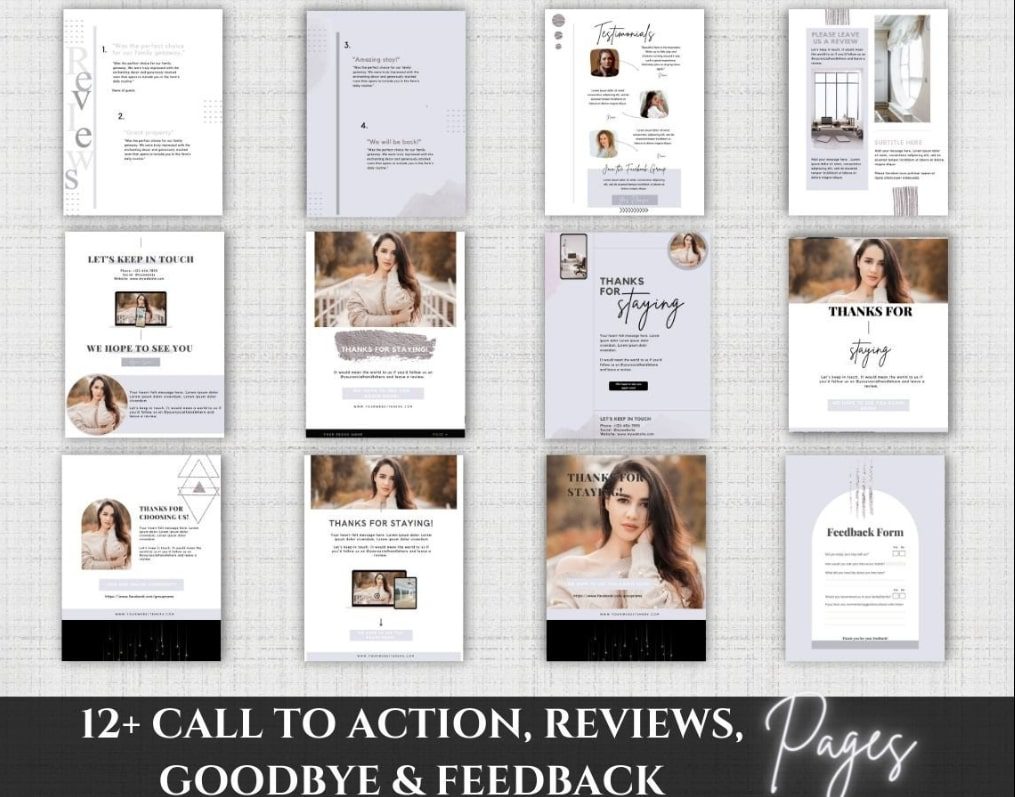
Design alone won’t sustain your brand — it’s how you implement those designs that matters. Once you’ve created a library of Canva design ideas, consistency is key.
Schedule your posts using tools like Canva’s Content Planner or integrations with social platforms.
Optimize for Platforms
Resize your designs to platform-specific dimensions using Canva’s “Magic Resize.” It prevents stretched images and keeps quality intact across Instagram, Facebook, and Pinterest.
Maintain Brand Consistency
Use Canva’s Brand Kit for uniform fonts, colors, and logo placement. This ensures your audience recognizes your brand instantly, no matter the platform.
Collaborate Smartly
If you work with a team, use Canva’s comment feature for real-time feedback. Assign editing permissions carefully — limit design edits to maintain brand integrity.
Monitor and Adjust
Track engagement metrics to see which visuals perform best. Tweak underperforming Canva design ideas and A/B test new layouts or color schemes. Design is iterative, not static.
By combining consistent design execution with analytics-driven adjustments, your small business can build an identity that feels polished, intentional, and trustworthy.
Final Words
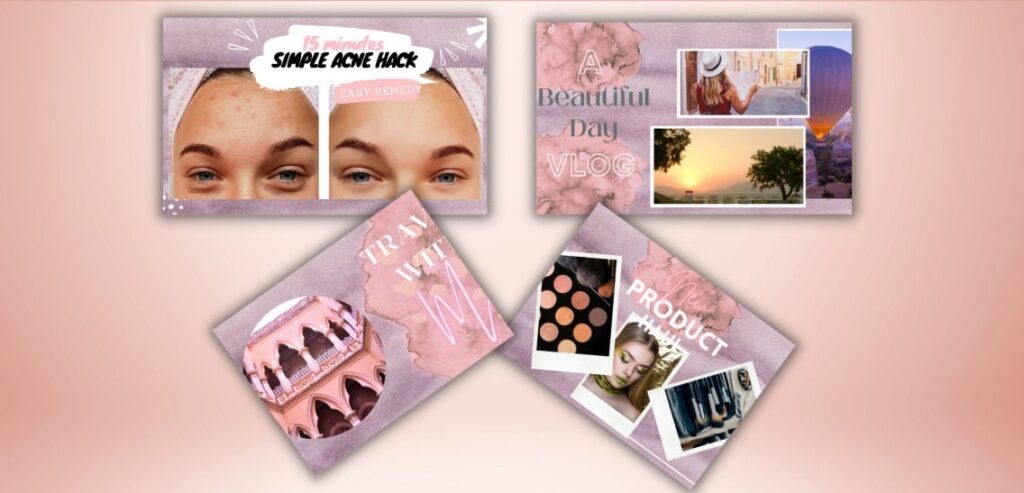
Design is no longer optional for small businesses — it’s your competitive edge. With the right Canva design ideas, you can craft a brand that communicates professionalism and creativity without needing an entire design team.
Remember: clarity beats complexity. Every logo, post, or brochure you create in Canva should serve a purpose—enhancing brand recognition, trust, or sales. By investing time in learning Canva’s features, from the Brand Kit to Magic Resize, you set yourself up for consistent growth.
Now’s the time to take action. Pick a few of these Canva design ideas, personalize them, and watch your small business visuals evolve from amateur to extraordinary. Great design doesn’t just attract — it converts.